 RodBird
Feb 2, 2016
RodBird
Feb 2, 2016
Having fun with the Arduino
rodbirdTable of Contents
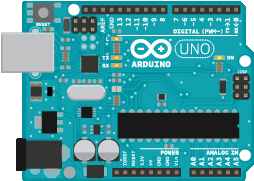
The Arduino is a much loved general purpose input and output board. It has a huge following and lots of support. This article is about how you can interface the board via the serial port and so give Liberty BASIC access to all that the board has to offer.
Start simply
If this is your first step into microprocessor control board electronics my advice would be to start simply. Purchase a Uno Kit. There are several kits all easily obtainable, each provides the board, electronic components and usually a booklet to get you up and running quickly.Some kits use soldered components, others offer plug in breadboard connection or ready made plug and socket connectors. Probably best to opt for plug in breadboard style which lets you build circuits quickly while you play and learn.
This is all the kit you need to get started:
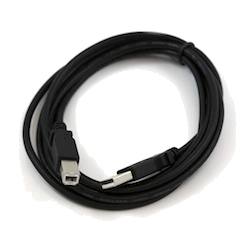
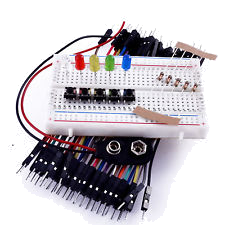
Purchase this kind of kit and play with it for a day or so, follow the tutorials available online or use the booklet. Get to the point where you have downloaded your own sketch to make the Arduino board LED flash. Now you are ready to unleash Liberty BASIC.
The Sketch
You will now know that the Arduino board uses a BASIC like programming language but there are significant differences to Liberty BASIC. These programs are called Sketches and you write them on your PC and download them to the Arduino board which fires up and runs autonomously. You can go and learn this language and you probably will over time, but right now we are going to use a general purpose Sketch written by the Liberty BASIC community. This Sketch allows simple serial messages to control and receive info from the board. So the board is running autonomously but it is dedicated to interpreting and actioning our control requests. It has become a slave to Liberty BASIC.Here is the Sketch, you will need to download it to your Arduino board, follow the booklet instructions on how to do that.
 #include <Servo.h>
 // set up 14 servo objects in an array
 Servo myservos[14] ;

 void setup() {
 Serial.begin(9600);
 Serial.println("Com Open");
 }
 void loop() {

 // you can call your own functions here
 // lbRun() is only called by interrupt
 // when there is serial data available

 }

 // serialEvent checks to see if data is available on serial port
 // when a message comes we just invoke our lbRun() function


 void serialEvent(){
 // check if data available, if so call the lbRun() routine
 if ( Serial.available()) {
 lbRun();
 }
 }


 void lbRun()
 {
 while (Serial.available() > 9)
 {
 // look for the next valid integer in the incoming serial stream:
 int cmd = Serial.parseInt();
 // do it again:
 int pin = Serial.parseInt();
 // do it again:
 int val = Serial.parseInt();
 // look for the "*", That's the end of our command string
 if (Serial.read() == '*')
 {
 //now select the command to run and use the pin and val argument
 if ( cmd == 0)//add servo
 {
 myservos[pin].attach(pin);
 }

 if ( cmd == 9)//detach servo
 {
 myservos[pin].detach();
 }

 if ( cmd == 1)//getdigital
 {
 pinMode(pin, INPUT);//set to input
 digitalWrite(pin, HIGH);//turn on pullup resistor
 Serial.print(pin);
 Serial.print(",");
 Serial.print(digitalRead(pin));
 Serial.print("*");
 }

 if ( cmd == 4)//setdigital
 {
 pinMode(pin, OUTPUT);//set to ouput
 digitalWrite(pin, val);
 }

 if ( cmd == 5)//setanalog
 {
 analogWrite(pin, val);
 }

 if ( cmd == 2)//getanalog
 {
 analogRead(pin);
 delay(10);
 Serial.print(pin);
 Serial.print(",");
 Serial.print(analogRead(pin));
 Serial.print("*");
 }
 if ( cmd == 6)//setservo
 {
 myservos[pin].write(val) ;
 }

 if ( cmd == 7)//settone
 {
 if (val == 0)
 {
 noTone(pin);
 }
 else
 {
 tone(pin, val);
 }
 }

 if ( cmd == 3)//getpulse
 {
 Serial.print(pin);
 Serial.print(",");
 Serial.print(pulseIn(pin, val));
 Serial.print("*");
 }

 if ( cmd == 8)//ping
 {

 // establish variables for duration of the ping,
 long duration;

 // The PING))) is triggered by a HIGH pulse of 2 or more microseconds.
 // Give a short LOW pulse beforehand to ensure a clean HIGH pulse:
 pinMode(pin, OUTPUT);
 digitalWrite(pin, LOW);
 delayMicroseconds(2);
 digitalWrite(pin, HIGH);
 delayMicroseconds(5);
 digitalWrite(pin, LOW);

 // The same pin is used to read the signal from the PING))): a HIGH
 // pulse whose duration is the time (in microseconds) from the sending
 // of the ping to the reception of its echo off of an object.
 pinMode(pin, INPUT);
 duration = pulseIn(pin, HIGH);
 Serial.print(pin);
 Serial.print(",");
 Serial.print(duration);
 Serial.print("*");
 }

 }
 }
 } // end or lbRun()

 // add your own functions here
Very briefly this Sketch loads the servo control library then starts polling the serial buffer looking for complete messages that we have sent over the serial link from Liberty BASIC. When it finds a complete message it interprets or parses that message to establish what we are asking it to do. Then on a simple select case basis it actions that request returning results if needed. We will pick out and explain what each part of the sketch achieves as we discuss the commands it understands.
The message format
A Liberty BASIC message is sent in the following fixed length format, numeric values have leading zeros:"CCPPAAAA*"Where:
CC = a two digit number specifying which command to action
PP = a two digit number specifying which pin to act on
AAAA = a four digit number passing the value to apply
followed by a terminating "*"
Responses, if issued, are received in a variable length message, comma delimited, in the following format:
"PP,RRRR*"Where:
PP = up to two digits specifying the pin producing the result
RRRR = up to four digits providing the numeric result
followed by a terminating "*"
The command list
Command Pin Range Value to send ResponseGetDigital 0-13 - pin,0 or 1
' The port is set to input and the pullup resistor set high,
' ground the pin via a switch/sensor to pull it low.
' GetAnalog 0-5 (analog) - pin,0-1023 0-5v
' The analog pins 0-5 return 0-1023 measuring 0-5v on the pin, connect
' pots, LDRs, Thermistors or any resistance based sensor.
' GetPWM 0-13 0 or 1 pin,microseconds
' Sending 0 will measure the low pulse 1 will measure the high pulse,
' connect gyros and accelerometers that provide PWM output.
' SetDigital 0-13 0 or 1 -
' This will set the pin HIGH or LOW use with LEDs or driver electronics
' to switch relays or pulse motors.
' SetPWM(analog) 3,5,6,9,10,11 0-255 -
' This sets the PWM ratio on any of the legal pins from 0% HIGH to 100% HIGH
' connect LEDs or with driver electronics control motot speed.
' AddServo 0-13 - -
' Servos must first be assigned a pin, this disables PWM on pins 9 and 10
' SetServo 0-13 0-180 -
' This sets the servo angle in degrees. But many electronic motor control (ESCs) and gyro
' gadgets use this form of PWM output. Forward and reverse motor speed control and gyro
' stabilised servo control are all possible.
' DelServo 0-13 - -
' Servos must be detached for the pin to be reused, when all are detached pin 9 and 10
' are reenabled for PWM
' SetTone 0-13 Hz 31-4978 -
' Only one pin can output a tone at any time, sending 0 silences the tone.
' Ping 0-13 - pin,microseconds
' This pings an ultrasonic transducer, divide the result by 29 then 2 to get cm distance
Making the connection
The first thing we need to do is open the serial link and connect to the Arduino. If you have plugged in the USB serial cable Windows will have opened a Com port and the Arduino will be checking it. All we need do is find the port number and start conversing.Here is some code that will find the com port and allow it to be opened. It uses a combobox, the combobox is filled with available ports and you then pick which one you want to talk to. So you may have more than one Arduino connected but most often we will be dealing with one port and one board and the code should automatically select that port.
Now we could write really simple code in the mainwin. It is perfectly possible to open the com port and send and receive messages from there. However there is likely to be a lot happening once we build the whole application so lets build a GUI interface.
 nomainwin


 WindowWidth = 550
 WindowHeight = 195
 UpperLeftX=int((DisplayWidth-WindowWidth)/2)
 UpperLeftY=int((DisplayHeight-WindowHeight)/2)
 combobox #main.cbport, port$(, portClick, 5, 80, 50, 100
 statictext #main.stport, "Com Port", 5, 60, 60, 20
 open "Arduino simple interface" for window as #main
 #main "trapclose quit"

 'Now find and list the com ports
 'We need an array to store the Com port names in
 dim port$(256)
 'since we plan to use Subs we need a few globals
 'I tend to identify global variables with a capital letter
 global Port
 Port=0
 'find out what com ports are available and load the combobox
 call getPorts
 wait

 'Subs to handle the com port ==============================================
 sub portClick h$
 'take com port combobox input, open chosen com port
 #main.cbport "selection? p$"
 if Port then close #port
 if p$<>"" then
 open p$;":9600,n,8,1,ds0,cs0,rs" for random as #port
 Port=1
 call delay 500
 end if
 end sub

 sub getPorts
 'test first 32 ports and load combobox list for valid serial ports
 index=1
 for p = 1 to 32
 oncomerror [trap]
 open "Com";str$(p);":9600,n,8,1,ds0,cs0,rs" for random as #com
 port$(index)="Com";str$(p)
 index=index+1
 close #com

 [trap]
 oncomerror
 next
 #main.cbport, "reload"
 'now if there is only one port open it
 if port$(1)<>"" and port$(2)="" then
 open port$(1);":9600,n,8,1,ds0,cs0,rs" for random as #port
 Port=1
 #main.cbport, "selectindex 1"
 call delay 500
 else
 #main.cbport, "selectindex 0"
 end if
 end sub

 sub delay m
 CallDLL #kernel32, "Sleep", m As ulong, Sleep As void
 end sub

 sub quit h$
 close #main
 if Port then close #port
 end
 end sub
Starting the conversation
I say conversation because you will be sending and receiving messages. You might do this statically. That is send one message and wait for the response, or you might do it on a timed basis, regularly graphing and displaying the results. The system is quite fast. Obviously the serial link and message passing is a bottleneck compared with how fast the Arduino would run unfettered but you will be able to get many readings per second.Now lets add some code that will manage the conversation. We need a send routine and a receive routine The send routine is pretty straight forwards because we initiate the message. The receiving is a little more complex because we may be receiving a stream of messages.
Third Part Title
Text here.'code here
Having fun with the Arduino | Start simply | The Sketch | The message format | The command list | Making the connection | Starting the conversation | Third Part Title