 JanetTerra
Jul 6, 2011
JanetTerra
Jul 6, 2011
Creating a Nonrectangular Window
Janet TerraCreating a Nonrectangular Window | Demo 1: Drawing a Nonrectangular Window | Demo 2: Creating a Nonrectangular Window from a Bitmap in Memory | Demo 3: Shaped Windows Without Graphicboxes
Creating an irregular shaped window is achieved with WinAPI calls to user32.dll and gdi32.dll. The first step is to create a window without a caption. This can be achieved with the stylebits commands _WS_POPUP in the addbits parameter and _WS_CAPTION in the removebits paramater, or simply using the window_popup style. It is also advisable to keep the window in the forefront. Do this by using the stylebits command _WS_EX_TOPMOST in the extended bits parameter. Remember that any GUI window may be closed with Alt-F4.
For more detailed discussion of stylebits, see Stylebits - Windows .
Demo 1: Drawing a Nonrectangular Window
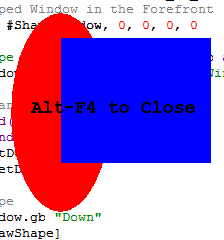
This first demo draws a circle, a rectangle, and some graphic text. The background is never added to the window. Only the actual drawings, including the graphic text, become part of the window. First, open a captionless window.NomainwinOnce the window is opened, handles and device controls to both the window and the graphicbox must be obtained.
'Define the Window
WindowWidth = 500
WindowHeight = 500
UpperLeftX = int((DisplayWidth-WindowWidth)/2)
UpperLeftY = int((DisplayHeight-WindowHeight)/2)
graphicbox #ShapeWindow.gb, 0, 0, 500, 500
stylebits #ShapeWindow.gb, 0, _WS_BORDER, 0, 0
'Keep the Shaped Window in the Forefront
stylebits #ShapeWindow, 0, 0, _WS_EX_TOPMOST, 0
open "Shape Window" for window_popup as #ShapeWindow
#ShapeWindow "trapclose [closeShapeWindow]"
'Obtain the Handles and Device ControlsNow you're ready to draw an image. In this first demo, the image will be drawn using API calls. These are the steps in the [drawShape] gosub.
hBw = hWnd(#ShapeWindow)
hBgb = hWnd(#ShapeWindow.gb)
hDCw = GetDC(hBw)
hDCgb = GetDC(hBgb)
'The Function
Function GetDC(hW)
Calldll #user32, "GetDC", _
hW as ulong, _
GetDC as ulong
End Function
1: The Destination - Define a region to hold the finished window. Because this region will be built upon, start with all 0's for x, y, width and height.
'Original values for hRgn is meaningless2: The Circle - Define the x, y, width and height values for the circle. Select a red brush, paint the designated ellipse, delete the brush.
hRgn = RectRegion(0, 0, 0, 0)
'The Function
Function RectRegion(ulx, uly, width, height)
CallDLL #gdi32, "CreateRectRgn", _
ulx as long, _
uly as long, _
width as long, _
height as long, _
RectRegion as ulong
End Function
'hRgn1 = Elliptical Source RegionUse CombineRgn to add this painted region, hRgn1, to the destination region, hRgn.
hRgn1 = EllipticRegion(100, 50, 200, 250)
'Paint the Ellipse Red
brushColor1 = 255 'Red Brush
hBrush1 = createBrush(brushColor1)
Call SelObject hDCw, hBrush1
Call PaintRegion hDCw, hRgn1
Call DelObject hBrush1
'The Functions and Subs
Function RectRegion(ulx, uly, width, height)
CallDLL #gdi32, "CreateRectRgn", _
ulx as long, _
uly as long, _
width as long, _
height as long, _
RectRegion as ulong
End Function
Function EllipticRegion(ulx, uly, width, height)
CallDLL #gdi32, "CreateEllipticRgn", _
ulx as long, _
uly as long, _
width as long, _
height as long, _
EllipticRegion as ulong
End Function
Function createBrush(brushColor)
Calldll #gdi32, "CreateSolidBrush", _
brushColor as long, _
createBrush as ulong
End Function
Sub PaintRegion hDC, hRgn
Calldll #gdi32, "PaintRgn", _
hDC as ulong, _
hRgn as ulong, _
null as long
End Sub
Sub DelObject hObject
Calldll #gdi32, "DeleteObject",_
hObject as ulong,_
null as long
End Sub
Sub SelObject hDC, hBrush
Calldll #gdi32, "SelectObject", _
hDC as ulong, _
hBrush as ulong, _
null as long
End Sub
'Set hRgn to the Combination of itself and hRgn1Now that region hRgn1 is a part of region hRgn, it is no longer needed. Delete that object to free memory.
newRgn = CombineRgn(hRgn, hRgn, hRgn1, _RGN_OR)
'Delete hRgn13: The Rectangle - Define the x, y, width and height values for the rectangle. Select a blue brush, paint the designated rectangle, delete the brush.
Call DelObject hRgn1
'hRgn2 = Rectangular Source RegionOnce again, use the API Call CombineRgn to add the pixels of the rectangle hRgn2 to the final destination region hRgn.
hRgn2 = RectRegion(150, 75, 300, 200)
'Paint the rectangle blue
brushColor2 = 255 * 256^2 'Blue Brush
hBrush2 = createBrush(brushColor2)
Call SelObject hDCw, hBrush2
Call PaintRegion hDCw, hRgn2
Call DelObject hBrush2
'Set hRgn to the Combination of itself and hRgn2The hRgn2 rectangle can now be safely deleted to free up space, as it's been added to the shaped window region hRgn.
newRgn = CombineRgn(hRgn, hRgn, hRgn2, _RGN_OR)
'Delete hRgn24: The newly built region made up of regions hRgn1 and hRgn2 can now be set as the window.
Call DelObject hRgn2
'Set hRgn as the WindowThe SetBkMode of #gdi32 can be called to achieve a transparent background for text. Text can then become part of the window.
Call SetWindowRgn hBw, hRgn, 1
'The Sub
Sub SetWindowRgn hWnd, hRgn, redrawMode
Calldll #user32, "SetWindowRgn",_
hWnd as ulong,_
hRgn as ulong,_
redrawMode as boolean,_
SetWindowRgn as long
End Sub
'Set background to TransparentReleaseDC is again called to release memory.
Call SetBkMode hDCgb, 1
'Release memoryGraphics text is accomplished with native Liberty BASIC code.
Call ReleaseDC hBgb, hDCbg
'Format TextRun your program and a shaped window appears. Close the window with Alt-F4 or include a button for closure. The window will stay on top of other windows, but it is possible for the window to lose focus. If this happens, click on the window before pressing Alt-F4.
#ShapeWindow.gb "font Courier_New 14 Bold"
#ShapeWindow.gb "color Black; place 120 150"
#ShapeWindow.gb "\Alt-F4 to Close"
Wait
Click ShapedDemo1.bas for the entire program.
Demo 2: Creating a Nonrectangular Window from a Bitmap in Memory
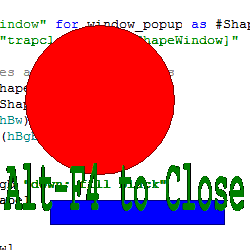
The second demo creates a nonrectangular window from a bitmap in memory. This demo draws the image, but you could just as easily load the bitmap from file using Loadbmp. The stylebits _WS_BORDER is used to remove the graphicsbox border.'Define the WindowOnce again, after the shapes are drawn, the background color is set to transparent before writing the graphic text. A region to hold the contents of the new window is defined.
WindowWidth = 250
WindowHeight = 250
UpperLeftX = int((DisplayWidth-WindowWidth)/2)
UpperLeftY = int((DisplayHeight-WindowHeight)/2)
stylebits #ShapeWindow.gb, 0, _WS_BORDER, 0, 0
graphicbox #ShapeWindow.gb, 0, 0, 250, 250
stylebits #ShapeWindow, 0, 0, _WS_EX_TOPMOST, 0
open "Shape Window" for window_Popup as #ShapeWindow
#ShapeWindow "trapclose [closeShapeWindow]"
'Obtain the Handles and Device Controls
hBw = hWnd(#ShapeWindow)
hBgb = hWnd(#ShapeWindow.gb)
hDCw = GetDC(hBw)
hDCgb = GetDC(hBgb)
'Draw the Shape
#ShapeWindow.gb, "Down; Fill Black"
Gosub [drawShape]
Wait
'Set region to nullThe shapes are drawn and text is written.
hRgn = RectRegion(0, 0, 0, 0)
'Draw a RectangleEach pixel must be now be read. The background color is black, as defined by
#ShapeWindow.gb "color darkblue; backcolor blue"
#ShapeWindow.gb "place 50 200; boxfilled 225 225"
 'Set background to Transparent
 Call SetBkMode hDCgb, 1
 'Release memory
 Call ReleaseDC hBgb, hDCbg
'Format and write text
#ShapeWindow.gb "font Courier_New 16 86 Bold"
#ShapeWindow.gb "color darkgreen; place 5 210"
#ShapeWindow.gb "\Alt-F4 to Close"
#ShapeWindow.gb "flush"
#ShapeWindow.gb, "down; fill black"so only NON-black pixels will become part of the new region, hRgn. Using a nested loop, the pixels can be searched across and down.
'Read each pixel. Add each pixel to hRgn only ifEach 2x2 block becomes a region. If the upper left corner pixel is not black, then that newly created tiny region (hTempRgn) becomes part of the final region (hRgn). If the upper left corner pixel is black, then it's not.
'color is NOT black (0)
For x = 0 to 250
For y = 0 to 250
If pixelColor(hDCgb, x, y) <> 0 Then
hTempRgn = RectRegion(x, y, x+1, y+1)
newRgn = CombineRgn(hRgn, hRgn, hTempRgn, 3)
Call DelObject hTempRgn
End If
Next y
Next x
A word about searching by pixel. Reading pixel by pixel is a slow process. If you run the demo included in the files archive, be sure to allow 30 - 60 seconds before the background disappears. Larger bitmaps will take considerably longer.
Once the newly formed region, hRgn, is complete, that region is set as the window.
'Set the region as the WindowAs a reminder, API created objects remain in memory until deleted. When closing the window, be sure to release the memory with DelObject.
Call SetWindowRgn hBw, hRgn, 1
 [closeShapeWindow]
 Call DelObject hBw
 Close #ShapeWindow
 End
Click ShapedDemo2.bas for the entire program.
Demo 3: Shaped Windows Without Graphicboxes
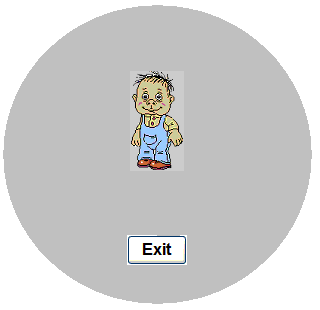
Neither graphics nor graphicboxes are required for shaped windows. An advantage to not using drawn graphics is that there is no need to flush the drawings.
Click ShapedDemo3.bas to view the entire program.
Creating a Nonrectangular Window | Demo 1: Drawing a Nonrectangular Window | Demo 2: Creating a Nonrectangular Window from a Bitmap in Memory | Demo 3: Shaped Windows Without Graphicboxes