 Alyce
Aug 19, 2010
- "Edited for grammar and formatting."
Alyce
Aug 19, 2010
- "Edited for grammar and formatting."
Graphics 101 – plotting a function
- by tsh73- Jul 31, 2010 1:29 pm
Table of Contents
Goal
Once upon a time there was a person who wanted to plot some graphs. He knew his math well enough, but had never drawn a thing in BASIC. Of course he looked at the help file, but just became confused. Well, no wonder, the help file is a reference document, not a tutorial. So I thought I would write a tutorial, starting from opening the graphics window through plotting pixels, drawing points, lines and maybe adding text for labeling.Non-goals
I am not going to discuss GUI or animation or sprites – I am just going to teach how to draw a static picture; namely, to plot a function.Pre-requisites
I assume that you have a rudimentary working knowledge of Liberty BASIC, that you are familiar with the mainwin and can calculate, check conditions, loop and print results.Where to draw
So prior to this you worked in mainwin. It is nice but it is not designed for drawing, only for displaying text. So, we need something to draw upon.There are two controls that allow drawing, a window opened for graphics, and a graphicbox control within a window. You can have several graphicboxes on a window and draw in all of them. Pretty cool, but for now we take the simplest course, a window of type graphics –
open "test" for graphics as #grThat's about as simple as it gets.
#gr "trapclose [quit]"
wait
[quit]
close #gr
end
The first line opens a window of type graphics, titled "test". We can draw on that. On my computer, it's about 300x300 pixels. You can try graphics_nsb_nf instead of graphics and get an even simpler window. The second line creates the trapclose handler and names a [branch label] that will get called if the window is closed. The third line causes our GUI to wait for user input.
The last lines are called if the window is closed either by a mouse click or Alt-F4 being pressed. They explicitly close the window and end the program. If you don't do this you will get an error report when the program stops.
If you do not need the mainwin in view you can suppress it by typing "nomainwin" at the top of your program. You might want to enable it occasionally to print variables for debugging, but generally speaking when you run a GUI you will suppress mainwin. If you need larger window with more drawing space, you set WindowWidth and WindowHeight before opening the window. Easy!
Pixels and coordinates
Ahhh pixels, exactly!They are just dots on your monitor. Anything you see on a monitor is composed of colored dots named pixels. A pixel is the smallest element of any picture.
At this moment your monitor is showing pixels in its current resolution, say 1280x1024. That is the size of the screen in pixels, (it can be changed ) and is the maximum size of the window you can show and draw upon.
Each pixel has coordinates. Basically that means they are numbered from 0, left to right and top to bottom. With whole numbers – there are no pixels between 0 and 1.
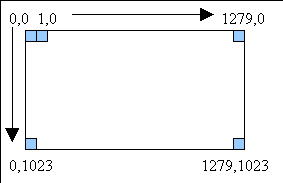
In math they teach another coordinate plane, where axes go from left to right and from bottom to top. Plenty of space is envisioned between whole points.
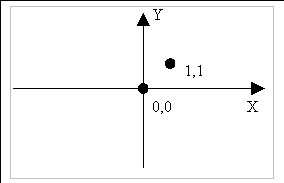
We are going to respect that when plotting functions.
Set a Pixel
We know that a screen consists of pixels, and pixels have coordinates. All we need to do to draw a pixel is to make a command and give coordinates?Almost:
nomainwinAs you see, we need to "put pen down" before drawing. (Unfortunate anachronism I might add).
open "test" for graphics_nsb_nf as #gr
#gr "trapclose [quit]"
#gr "down"
#gr "set 100 100"
wait
[quit]
close #gr
end
We set a single pixel to black at 100, 100 coordinates. That is 100 pixels to the right and down from top-left corner of window. (More exactly, from top-left corner of window client area – its "working zone").
Set a bunch of Pixels
A single point is barely visible. Let's make a bunch, shall we? But how are we going to do it? Why, with loops. FOR loops will do just fine. Let X change from 100 to 200, and Y equal to X. But how do we put these numbers inside of the "set" command string? Let's see. Actually, line- #gr "set 100 100"
- print #gr, "set 100 100"
It turns out that our graphic command (as ALL graphic commands) is an ordinary PRINT operator. We print to a window (#gr is a window handle) string, containing the command.
That answers the question how to put numbers in a command. Just as in PRINT:
- #gr "set ";100; " ";100
- X=100: Y=100
- #gr "set ";X; " ";Y
editor's note: see "Understanding Syntax" in the Liberty BASIC helpfile.
(Handy tip: If your drawing command does not work as expected, turn it into an ordinary PRINT statement --by replacing #gr with print-- and examine the line in the mainwin.)
So here's our program:
 nomainwin
 open "test" for graphics_nsb_nf as #gr
 #gr "trapclose [quit]"
 #gr "down"
 for X=100 to 200
 Y=X
 #gr, "set ";X;" ";Y
 next
 wait

 [quit]
 close #gr
 end
Why, it's a line! – a line
Indeed. We just drew a line. I'm pretty sure there must be more straightforward ways to draw straight lines? - #gr "line 100 100 200 200"
-
You can also place a first point with a dedicated command and then draw from this point to another one. That comes in handy then we need to draw point-by-point chain of lines:
- #gr "place 100 100"
- #gr "goto 200 200"
Remember, if we use variables we must preserve spaces in command lines. (It applies EVERYWHERE).
Why, it's a circle! – circle
nomainwinWhat? A pretty round circle?
open "test" for graphics_nsb_nf as #gr
#gr "trapclose [quit]"
#gr "down"
pi=acs(-1)
for t=0 to 2*pi step 0.01
X=100*cos(t)+150
Y=100*sin(t)+150
#gr, "set ";X;" ";Y
next
wait
[quit]
close #gr
end
Let’s see why. It’s all math, you know. We have that Pi number, equal to 3.1415926… but much simpler to put pi=acs(-1) instead. If we change angle (t) from 0 to
All we added was scaling that to radius 100 (by multiplying) and shift
And of course there is an easier way to draw a circle. Just place the center point, then issue the graphics command to draw a circle with desired radius:
- #gr "place 150 150"
- #gr "circle 100"
But Archimedes Spiral
A bunch of dots capable of more! So far our examples looked too complex for the task solved (things
Do we need plotting point by point at all? Why, sure we
 nomainwin
 open "test" for graphics_nsb_nf as #gr
 #gr "trapclose [quit]"
 #gr "down"

 pi=acs(-1)
 nLoops=10
 for t=0 to 2*pi*nLoops step 0.01
 X=100*t/(2*pi*nLoops)*cos(t)+150
 Y=100*t/(2*pi*nLoops)*sin(t)+150
 #gr, "set ";X;" ";Y
 next
 wait

 [quit]
 close #gr
 end
Turtle was here here.
(and we need some stuff eventually) Actually, besides the “line, point” approach there
nomainwinI just think it's not well suited to plotting functions. (But it nicely covered in
open "test" for graphics_nsb_nf as #gr
#gr "trapclose [quit]"
#gr "down"
#gr "place 150 250" 'initial position found by trial and error
for i=1 to 30
#gr "go 200"
#gr "turn ";180+15 '180 degrees means turn backwards.
'So, backwards and some
next
wait
[quit]
close #gr
end
Here's one trick I'll show you.
- #gr "home"
- #gr "posxy w h"
- width=2*w: height=2*h
Oh, and we was going to plot a function? A sine may be? Plotting the Sine Function
First, recall some math. Let us say, we want to plot the sine from –Pi to Pi, that is, full period. And we know that sine goes from -1 to 1, no more. So we have "logical" coordinates by X in range [-3.14, 3.14] and by Y in range [-1,1]. This should be mapped on "physical" coordinates – to actual pixels, starting from (0,0) and going approximately to (300,300). Some languages provide automatic translation; we have to do it ourselves. Do not worry, it's easy.
In our case, for the X coordinate, we should move X range to 0: X+3.14, and then stretch that range (2*Pi roughly makes 6) to 300 pixels: (X+3.14)*50 (approximately).
 nomainwin
 open "test" for graphics_nsb_nf as #gr
 #gr "trapclose [quit]"
 #gr "down"
 pi=acs(-1)

 for X=0-pi to pi step 0.01
 Y=sin(X)
 #gr "set ";(X+3.14)*50;" ";300-(Y+1)*150
 next
 wait

 [quit]
 close #gr
 end
Wow. The sine wave all right, with proper orientation. If you don't like to see gaps between dots, you can connect dots by using "goto" instead of "set":
- #gr "goto ";(X+3.14)*50;" ";300-(Y+1)*150
No, I mean Scaling any function (scaling goes here) plotted function.
Let's take "any" function. Let us use f(x)= 1.5*x^2-2*sin(5*x), x in [-2,3]. In general form:
To translate X from interval [0,1] to [c,d] we'll do X*(d-c)+c.
To translate X from interval [a,b] to [0,1] we'll do (X-a)/(b-a).
Combining, we'll get universal formula:
To translate X from interval [a,b] to [c,d] we'll do (X-a)/(b-a)*(d-c)+c.
We are going to use it to translate math coordinates to screen coordinates, so [a,b] is math range and [c,d] is screen one. But we can use it backwards, for example if we want to translate mouse clicks to math coordinates.
For ease of use, I suggest that we'll create two functions: sx(x) and sy(y), that'll convert math X to screen X and math Y to screen Y, respectively. But – our formula needs a bunch of other numbers? No problem – all
Normally
One last thing before we write the program. The coordinate axes are just two lines, that
nomainwinDamn. This thing got a bit long, but I hope still understandable.
global winW, winH, xmin, xmax, ymin, ymax
open "test" for graphics_nsb_nf as #gr
#gr "trapclose [quit]"
#gr "down"
#gr "home"
#gr "posxy w h"
winW=2*w: winH=2*h
'f(x)=1.5*x^2-2*sin(5*x), x in [-2,3]
xmin=-2: xmax=3
nPoints=winW 'we have only this much screen dots in X range
dx=(xmax-xmin)/nPoints 'so this will be step in math coordinates
'now, to get ymin, ymax we have to loop
ymin=f(xmin)
ymax=ymin
for x=xmin to xmax step dx
y=f(x)
if ymin > y then ymin = y
if ymax < y then ymax = y
next
'now we just - plot function. Note same loop
y=f(xmin)
#gr "set ";sx(xmin);" ";sy(y) 'just set first dot
for x=xmin to xmax step dx
y=f(x)
#gr "goto ";sx(x);" ";sy(y) 'then connect dots
next
'and finally, add axis
#gr "line ";sx(xmin);" ";sy(0);" ";sx(xmax);" ";sy(0)
#gr "line ";sx(0);" ";sy(ymin);" ";sx(0);" ";sy(ymax)
wait
[quit]
close #gr
end
'"any" function. You can change it as you like
function f(x)
f=1.5*x^2-2*sin(5*x)
end function
'To translate X from interval [a,b] to [c,d] we'll do (X-a)/(b-a)*(d-c)+c.
'create two functions: sx(x) and sy(y)
function sx(x)
sx=(x-xmin)/(xmax-xmin)*winW
end function
function sy(y)
sy=winH-(y-ymin)/(ymax-ymin)*winH 'Y is inverted, so winH-...
end function
Adding text labeling
That's easy. You place the pen, then print "\" and the text. Text is placed with the top-left cornernomainwin
open "test" for graphics_nsb_nf as #gr
#gr "trapclose [quit]"
#gr "down"
#gr "place 100 100"
#gr "\Hello"
#gr "\from Liberty BASIC"
wait
[quit]
close #gr
end
For labeling a graph, you can use our translating functions sx(), sy(). So, for our graph, it could be like
 'labeling
 #gr "place ";sx(0)+5;" ";sy(0)-5
 #gr "\0,0"
 #gr "place ";sx(xmax)-20;" ";sy(0)-5
 #gr "\X"
 #gr "place ";sx(0)+5;" ";sy(ymax)+20
 #gr "\Y"
And if you are going really fancy, you can change font, size and
Adding color and thickness
As easy as could get. You just command "color red" and "size 3",- #gr "color red"
- #gr "size 3"
All points and lines you'll draw after will be red and 3 pixels thick. But you can turn it back of course:
- #gr "color black"
- #gr "size 1"
Flush that thing down… err… I mean, stick it Causing graphics to persist with FLUSH
For now you probably encountered that strange thing – nomainwin
open "Try to cover me" for graphics_nsb_nf as #gr
#gr "trapclose [quit]"
#gr "down"
#gr "place 50 100"
#gr "\I am flushed - I'll stay"
#gr "flush"
#gr "\I am NOT flushed - I'll disappear"
wait
[quit]
close #gr
end
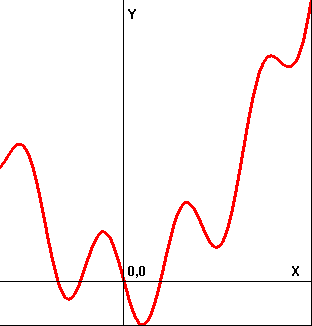
Oh, and we could save that nice graph, do we? Saving the image.
Why, yes. There couple of commands just for - #gr, "getbmp drawing 1 1 ";winW;" ";winH
- bmpsave "drawing", "graph.bmp"
Where to get more
Why, if you have read this and want more, may be it's time to look back into a help file? I hope it will make more sense now ;)See Tom Nally's Wire Frame Library tutorials for more on plotting graphics.
Wire Frame Library
Some graphics tutorials from the newsletters:
http://babek.info/libertybasicfiles/lbnews/nl98/2.htm
http://babek.info/libertybasicfiles/lbnews/nl105/DrawnObjects.htm
Addendum
Whole program (just in case you missed something):graph_tutorial.bas